Security
Buddy provides a set of features designed to keep your workspace and data safe from unauthorized access.
A part of them is user-oriented, which means they are accessed from the user profile settings, whereas some are workspace-specific and restricted to the project owner and admins.
Restrictions
These settings are available in Workspace Settings and let you control project creation and public access. By default, all restrictions are turned off.
Image loading...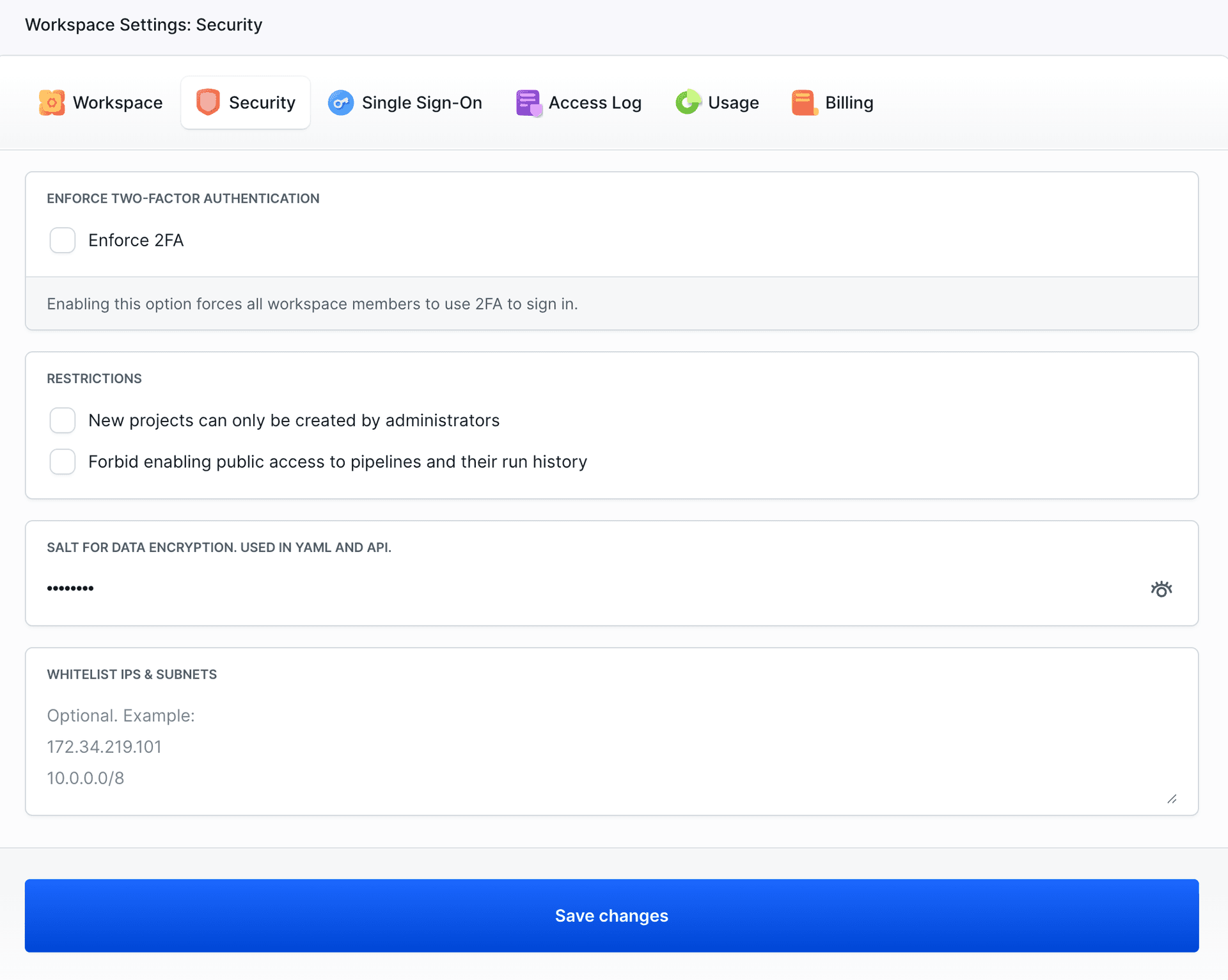
New projects can only be created by administrators
When enabled, only workspace administrators can create new projects. Regular workspace members will not have the option to add projects.
Forbid enabling public access to pipelines and their run history
When enabled, this option prevents users from making projects publicly accessible. All projects in the workspace will be forced to remain private, ensuring that pipelines and their execution history cannot be shared externally.
Password strength
By default, Buddy only accepts logins of at least medium password strength. Administrators can turn on a setting that will force the workspace to accept strong password logins only.
Strong password must contain at least:
- 10 characters
- one number
- one uppercase letter
- one lowercase letter
- one special character
- not more than 3 identical characters in a row
Two-factor authentication (2FA)
2FA provides an extra layer of security when logging into websites or apps. Each user can activate 2FA in their account settings (My ID) under the Security tab.
Image loading...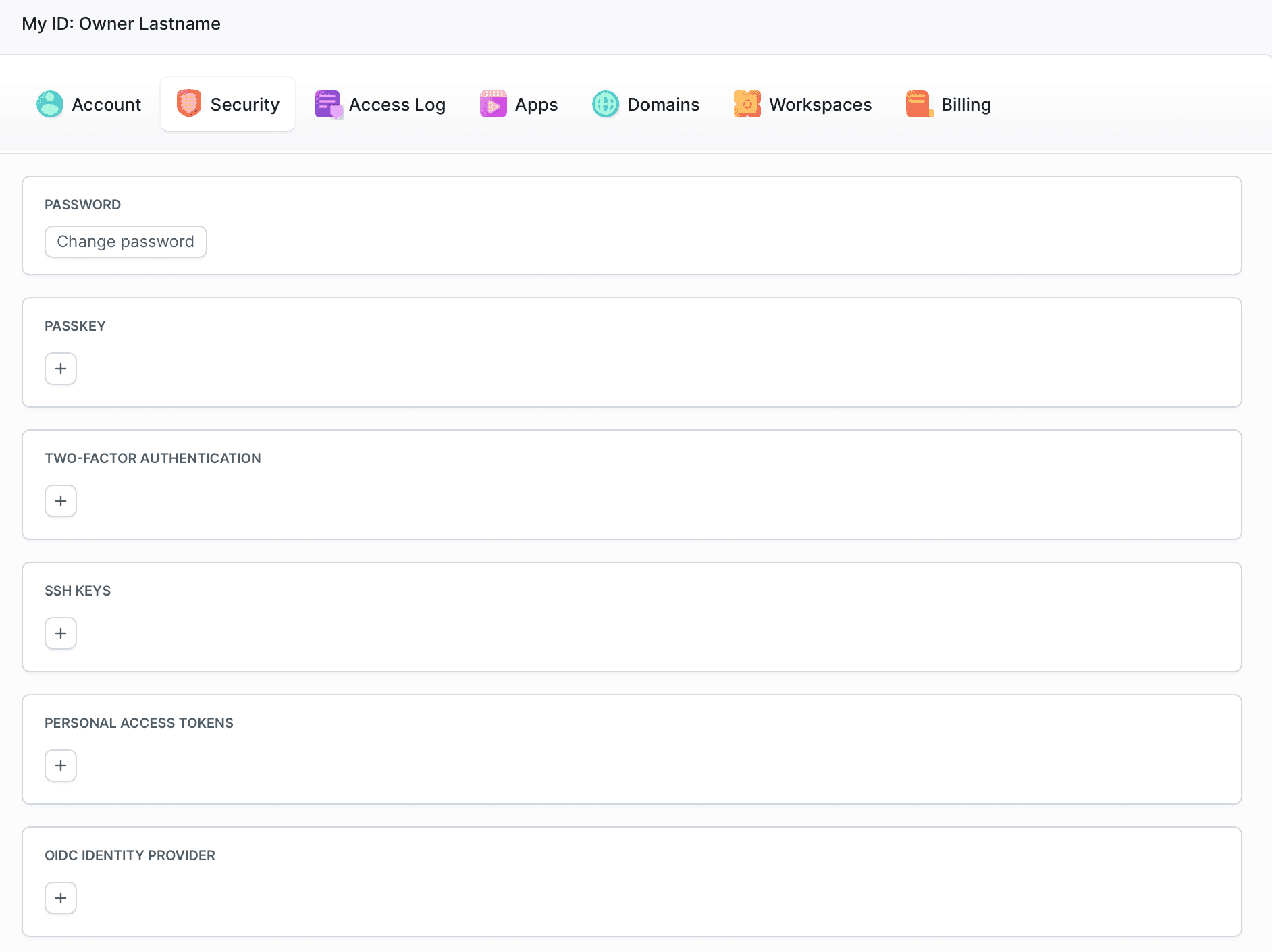
Buddy offers two ways to set up 2FA: via SMS (text message) or an authenticator application like Google Authenticator or Authy.
Click the + button in the Two-Factor Authentication section to see available options.
Image loading...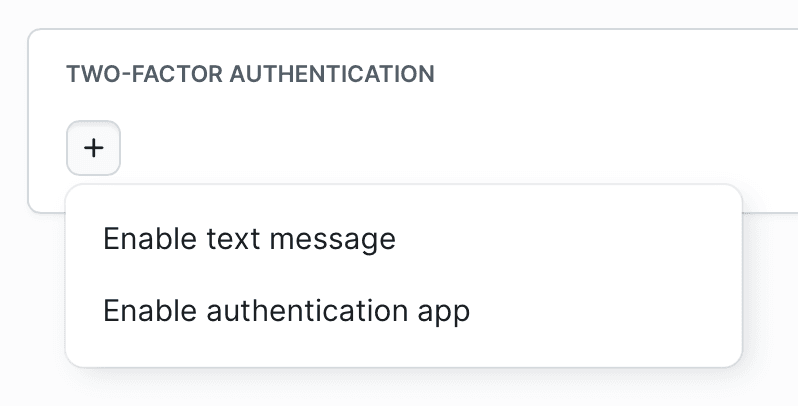
When setting up 2FA via an authenticator app, scan the QR code with your application and enter the generated code to complete the setup.
Image loading...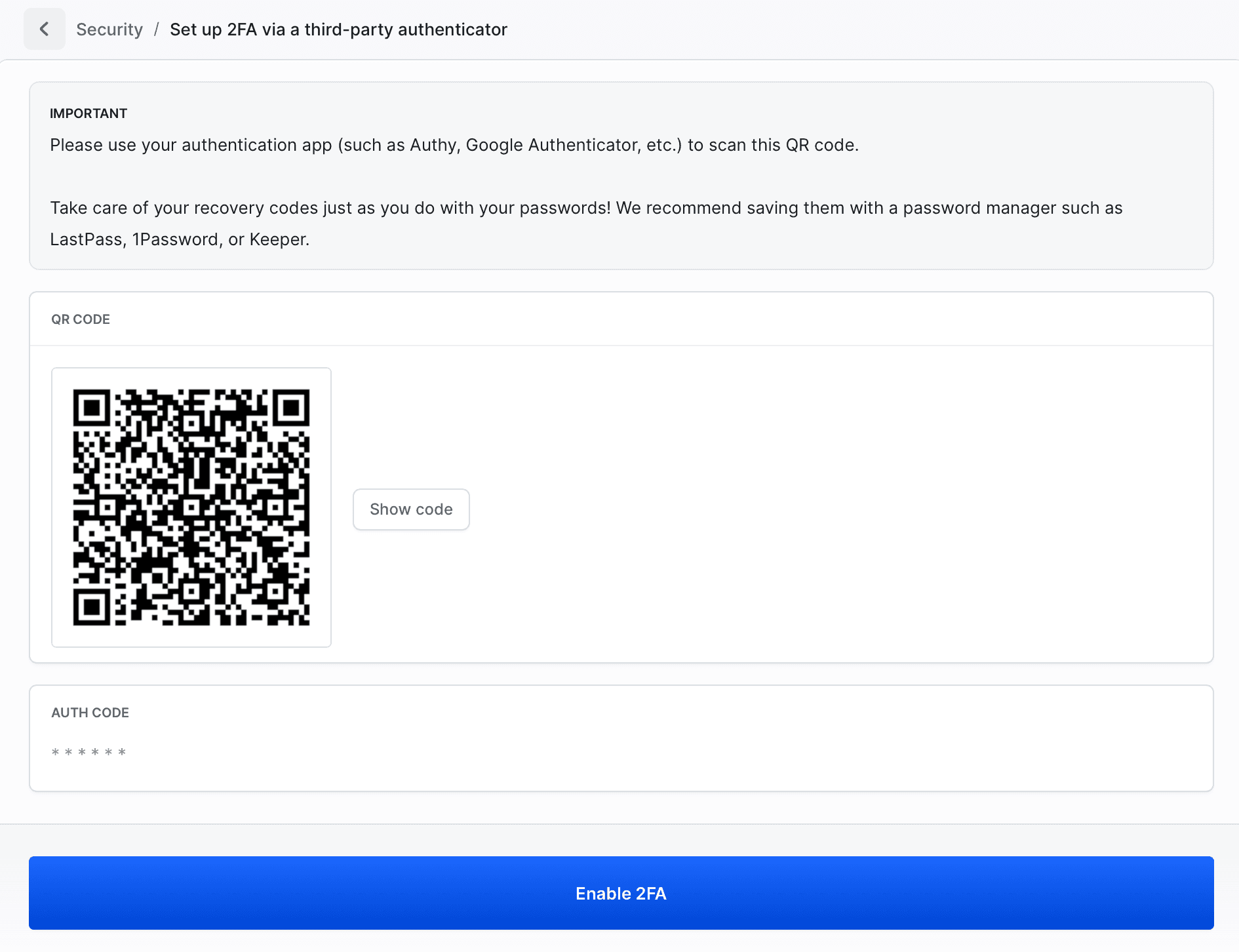
Once enabled, your Two-Factor Authentication section will show the configured method.
Image loading...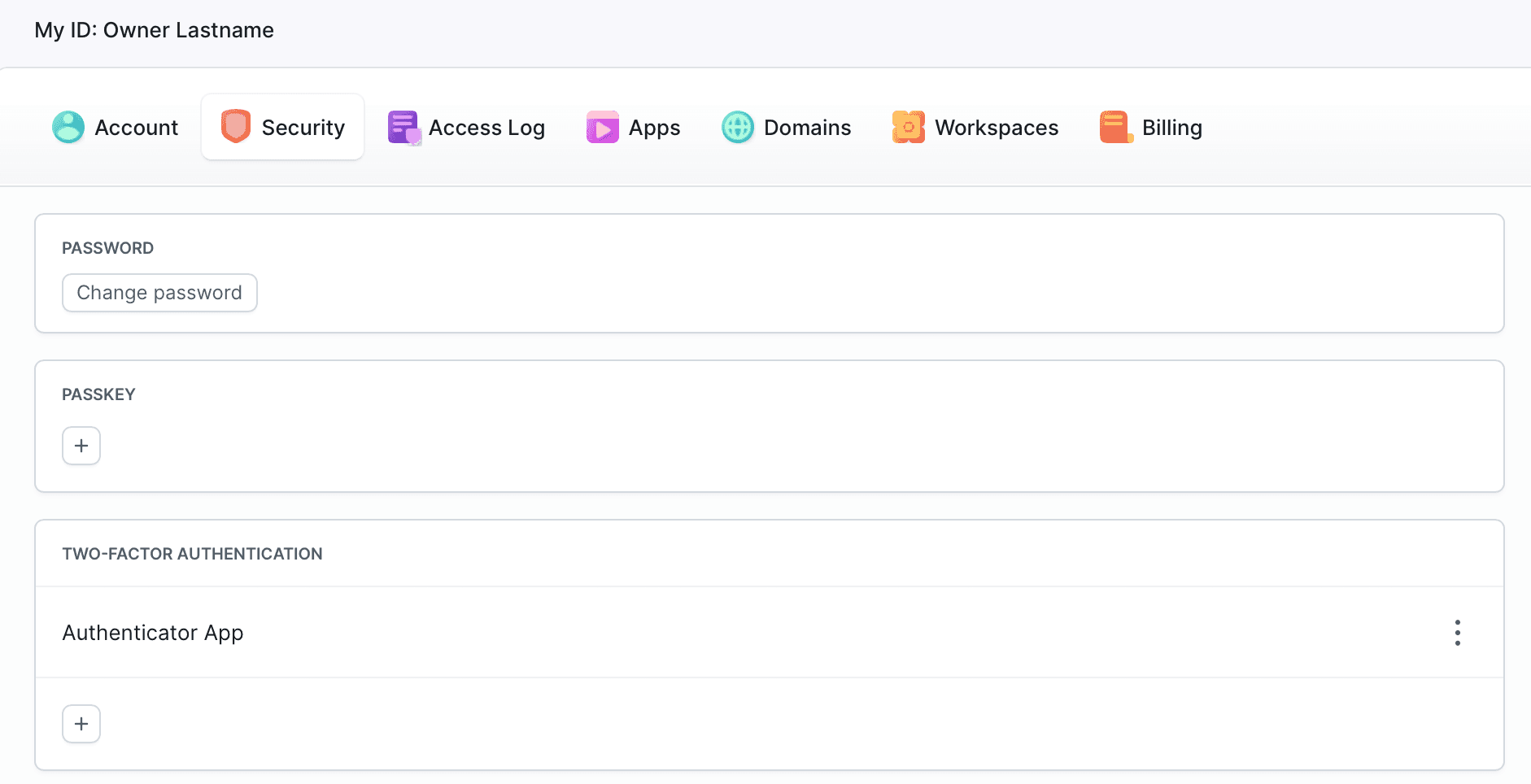
Recovery codes
During the 2FA setup, Buddy will produce a list of recovery codes. You can also access them later by clicking the + button in the Two-Factor Authentication section and selecting Show backup codes.
Make sure to download the codes and store them in a safe place (e.g., in a password manager like LastPass, 1Password, or Keeper) or you will not be able to access the account in case your authentication device gets lost or damaged.
Image loading...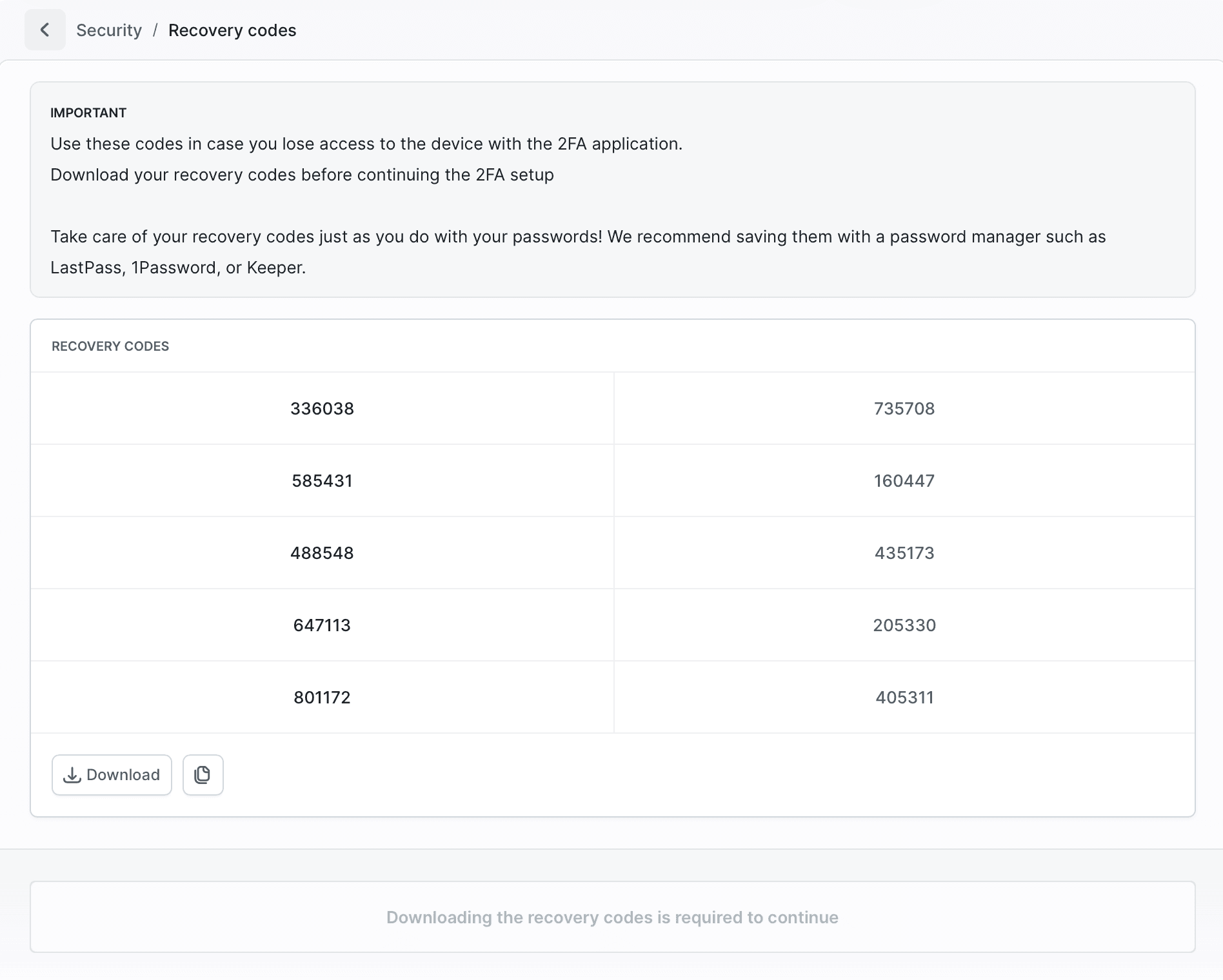
Enforce 2FA for workspace
Workspace owners and admins can activate an option that will restrict users without active 2FA from logging in. The option is available in Workspace Settings under the Security tab as Enforce 2FA.
Image loading...
Developer API
Enabling the API allows you to build your own apps and services and connect them with Buddy. By default, this option is disabled. You can find it in Workspace Settings in the Workspace tab.
Image loading...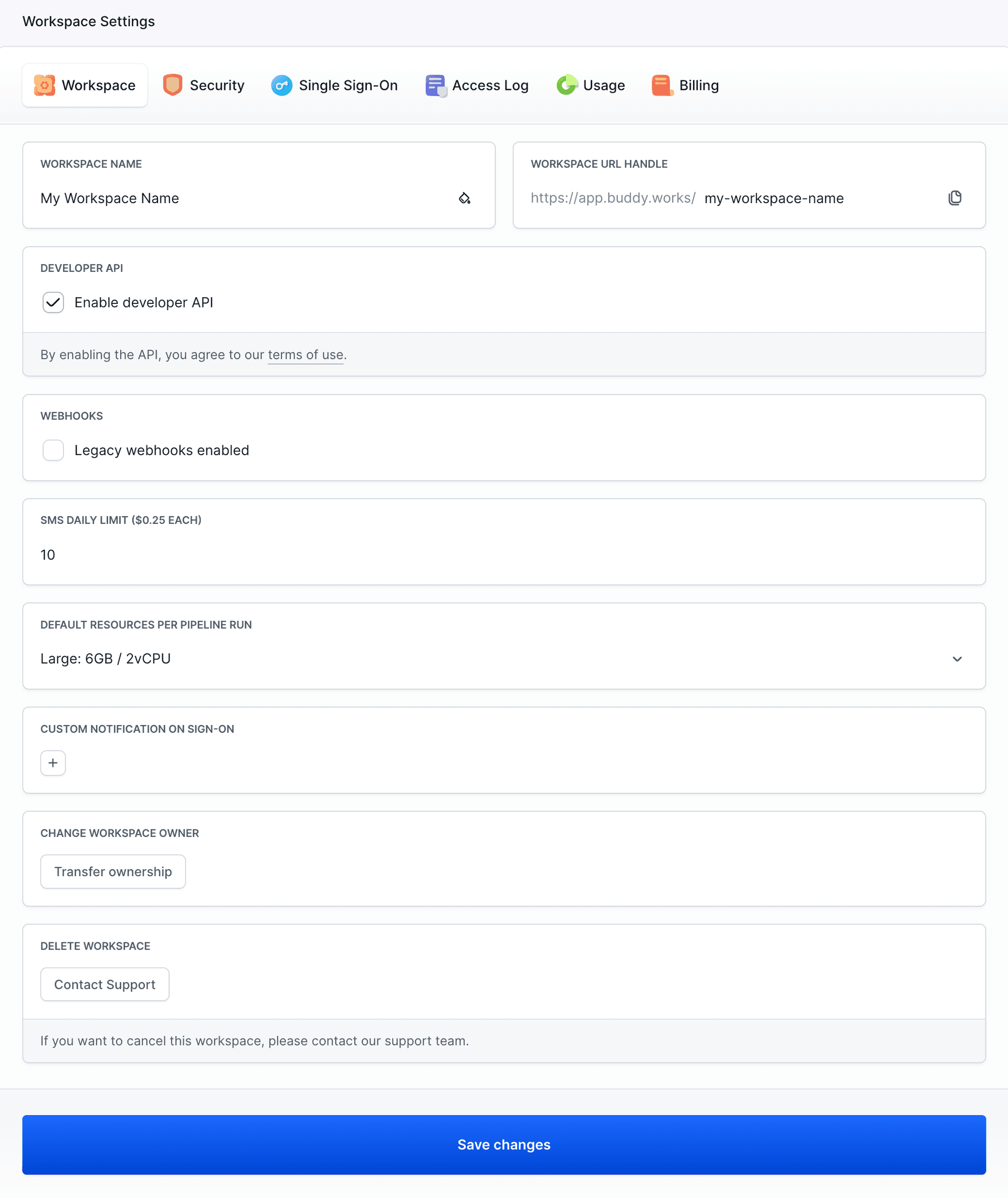
To use the API, you need an OAuth 2 token to authenticate. An example URL with the token looks like this:
bashhttps://api.buddy.works/user?access_token=000e0e00-00ba-0000-0a0b-c0b00000a0a0$
Last modified on Jan 27, 2026